Linear
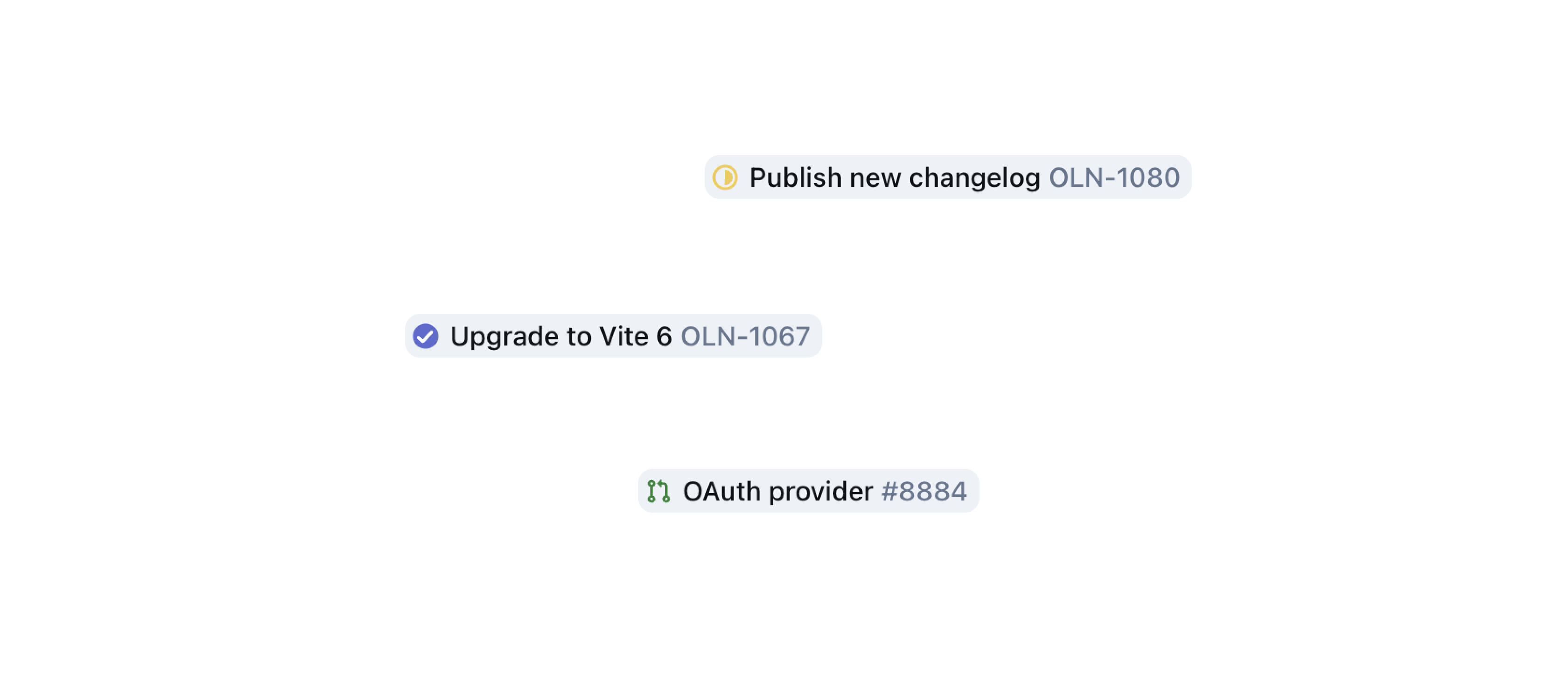
The Linear integration allows you to preview live issue and project details when pasting Linear links into Outline documents. You can see the current status, timestamp, a preview of the description and labels associated with an issue.
Config
To setup the integration navigate to Settings → Integrations → Linear. You must have an admin role to be able to see this screen. Click the “Connect” button and authenticate with your Linear account – you can also choose at this time if to only allow previewing specific teams or all teams in your Linear workspace.
Connect multiple workspaces
If you have more than one Linear workspace it can be connected in the same way by navigating to the settings page and click on the “Connect” button that is now in the header.
Note: Linear is linked once for the entire Outline workspace, other team members will be able to see issue details from teams that are linked in this way.
Usage
Once the integration is connected, paste a linear.app link into an Outline document and you will see the option to “mention” to see a preview with detailed information embedded in the document. You can also hover to see more details.